Verify device
Device verification is an important feature of element. This way you prove to your contacts that the device you are sending from belongs to you.
Read more about the upcoming mandatory device verification on the element blog.
Check the verification status of your device
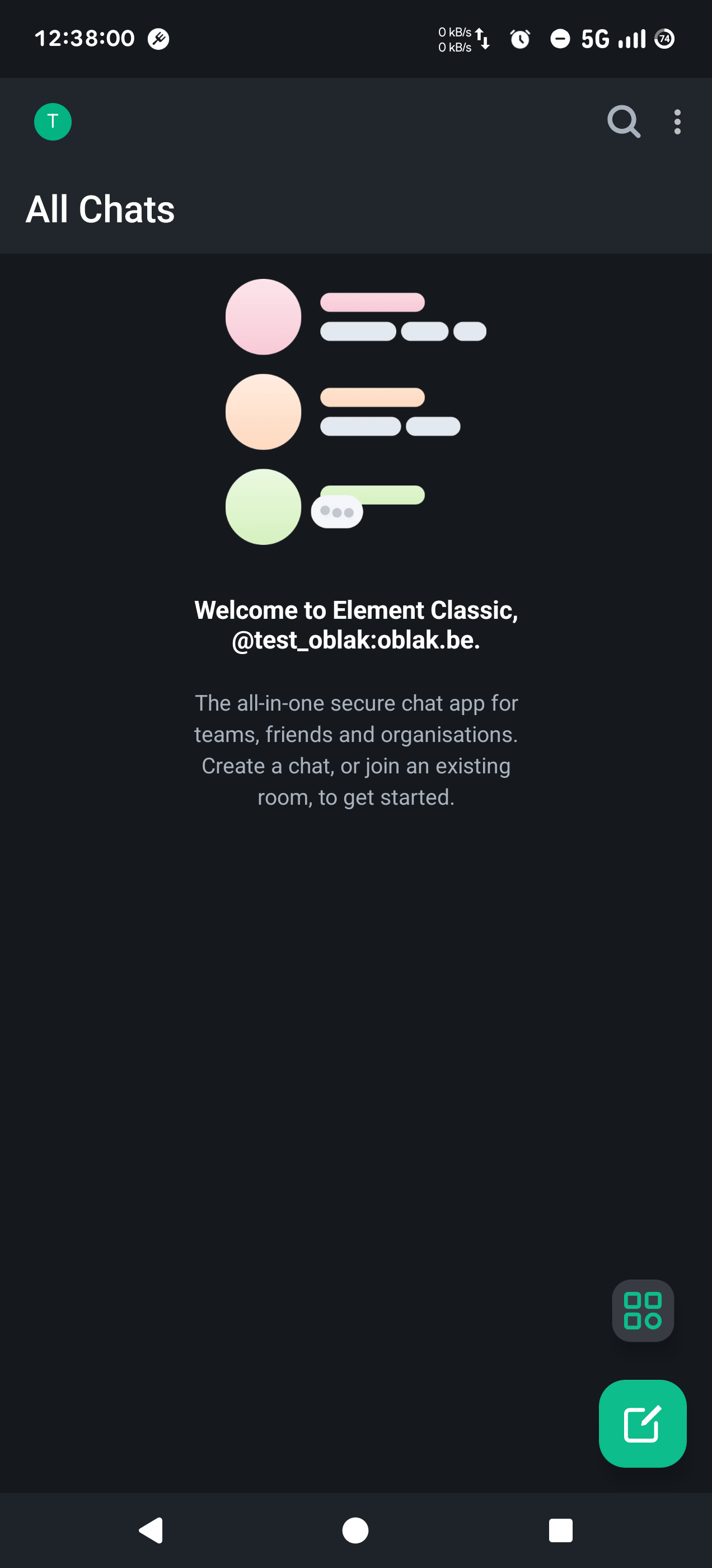
Tap your avator (top left) in the homescreen to open the Settings menu
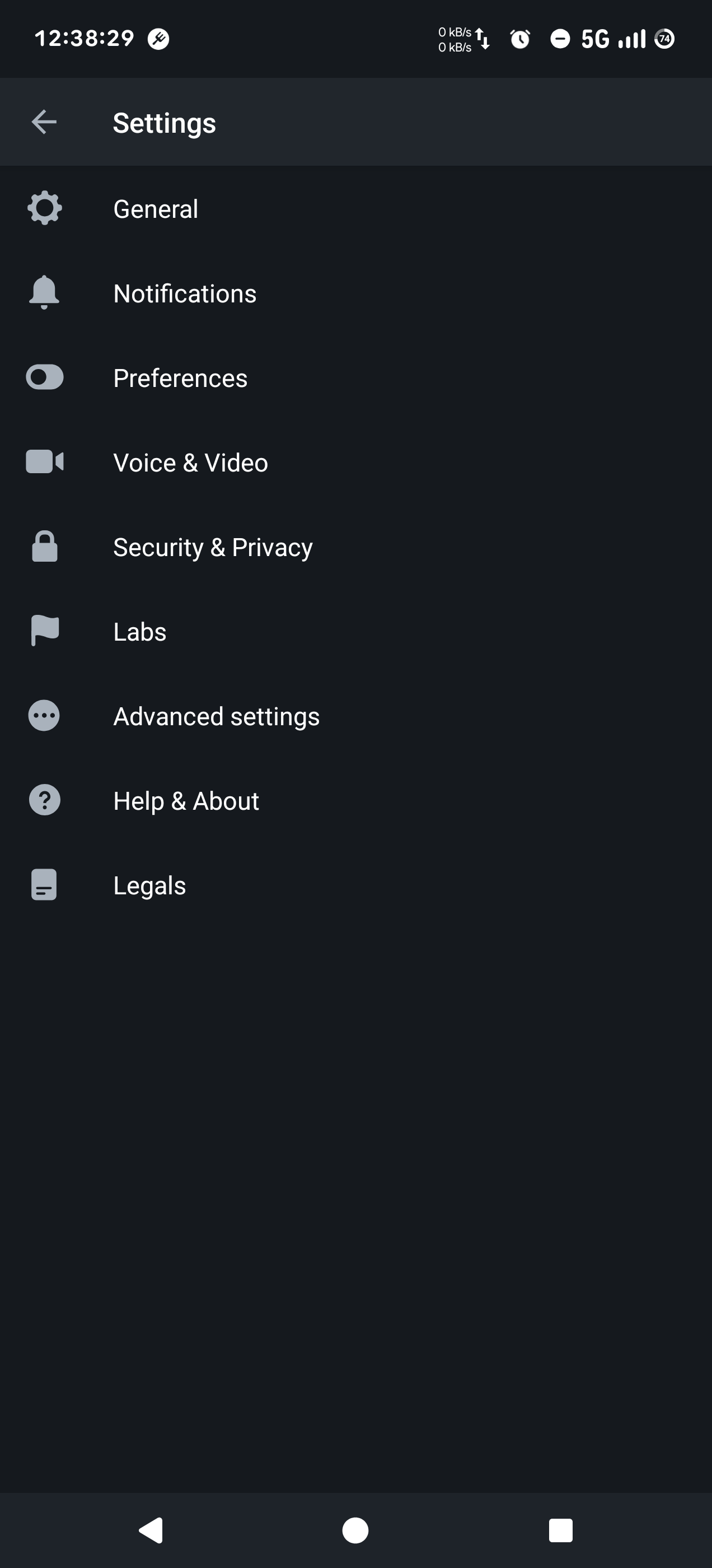
Look for Security and Privacy
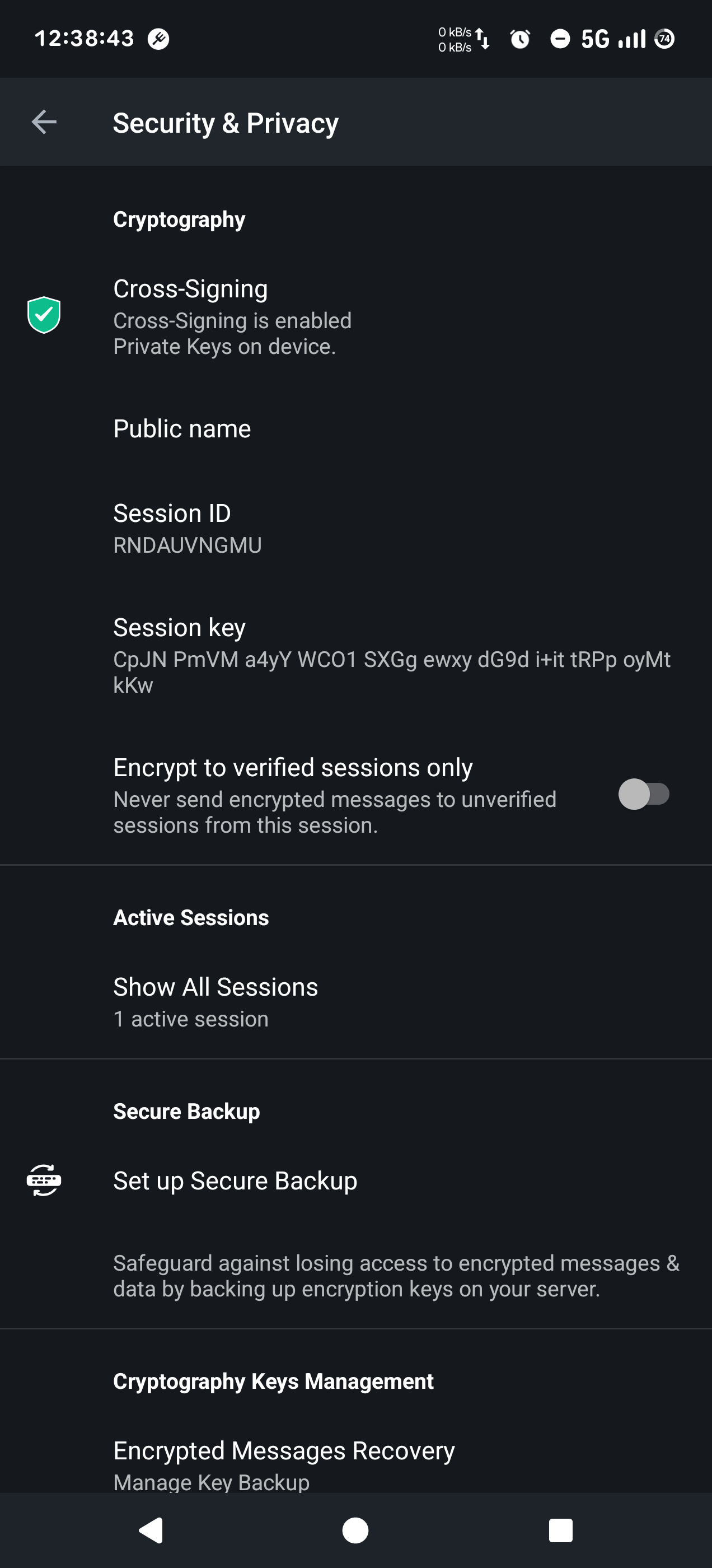
Tap Show All Sessions.
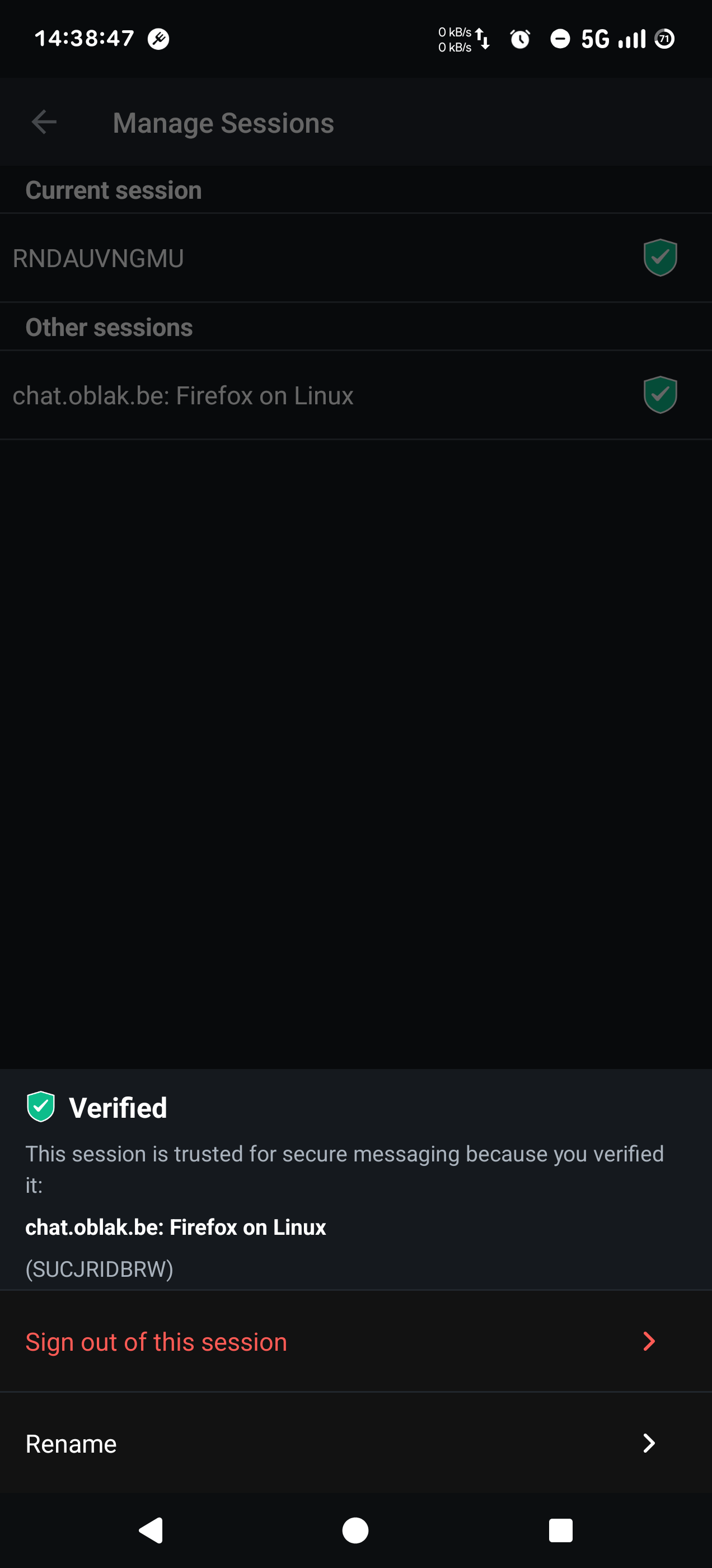
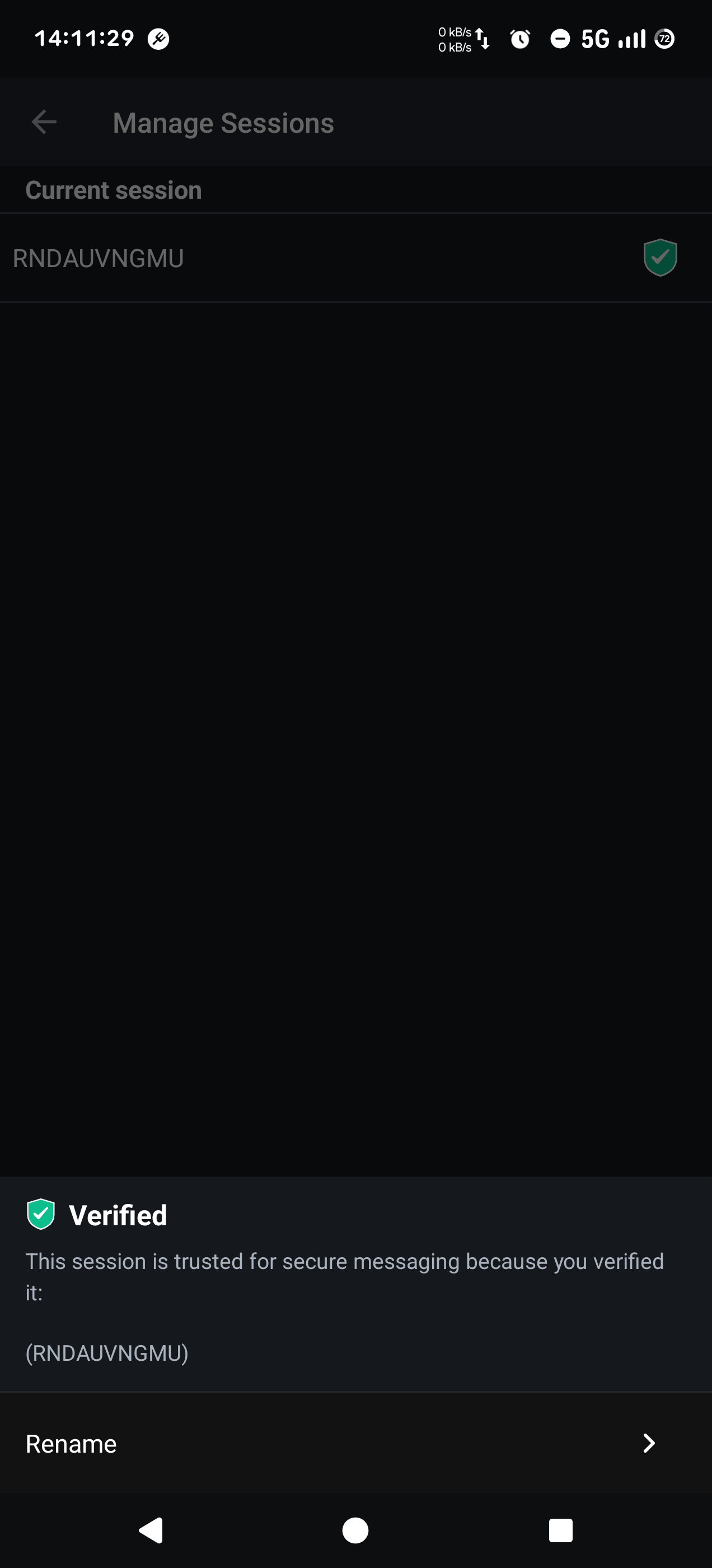
Tap the session ID. If it shows a green shield icon and says Verified, everything is OK.
Verify a second device
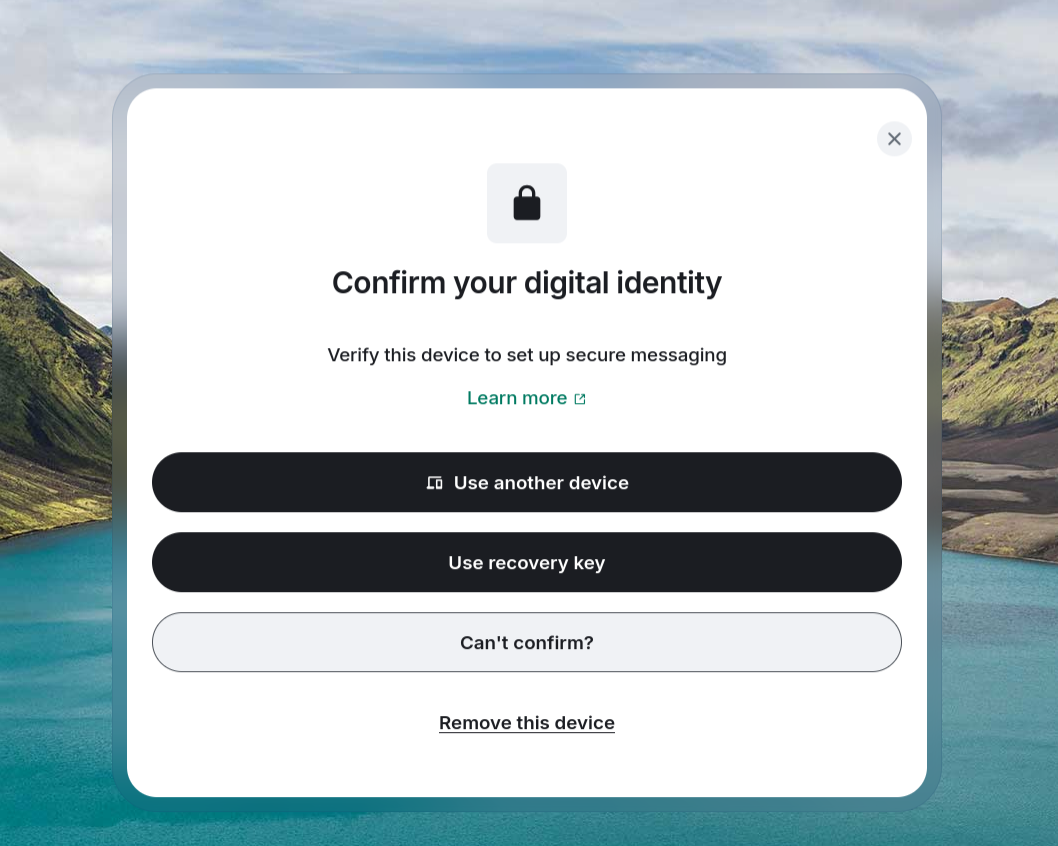
On your laptop, go to chat.oblak.be and login. When you see the screen below, click User another device.
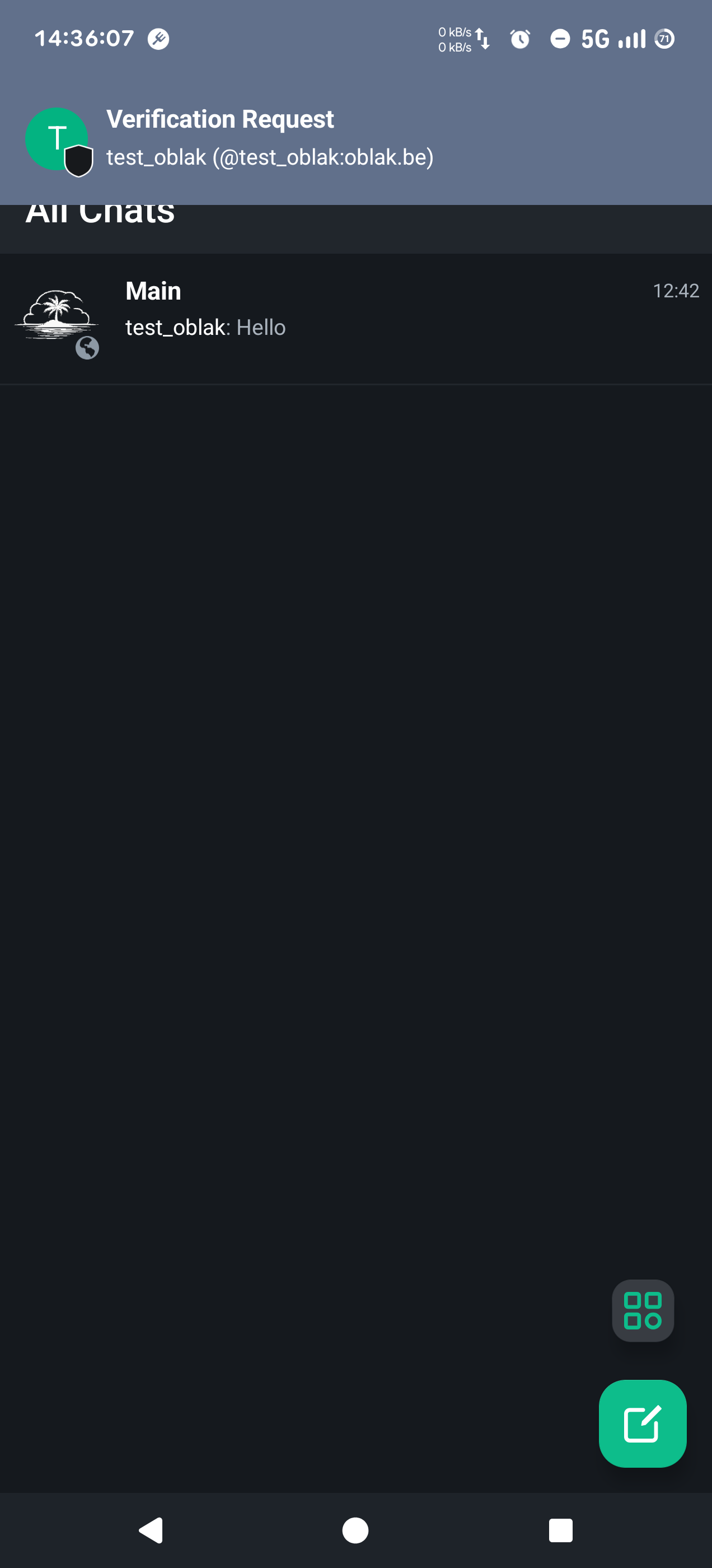
Tap the pop-up Verification Request on your mobile device to start the verification.
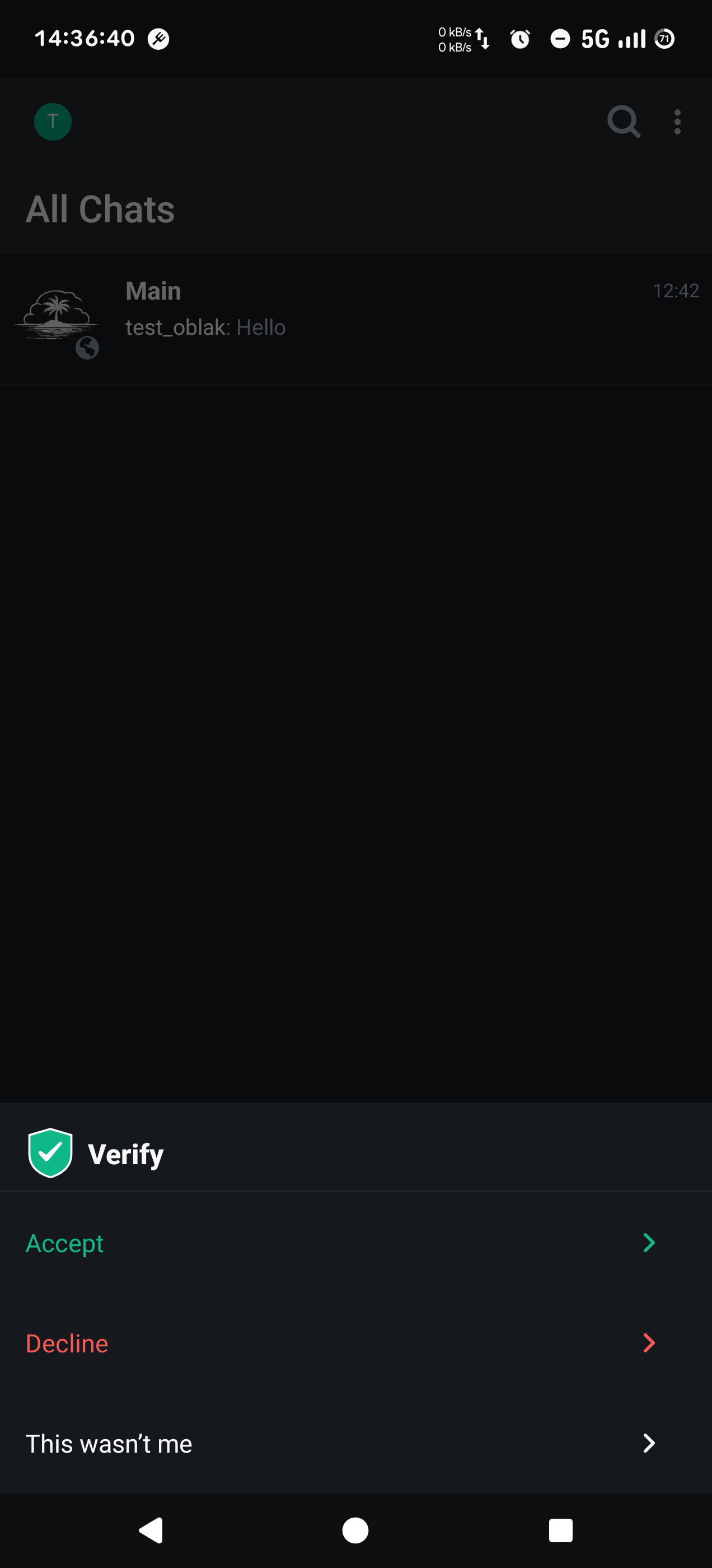
Tap Accept to continue.
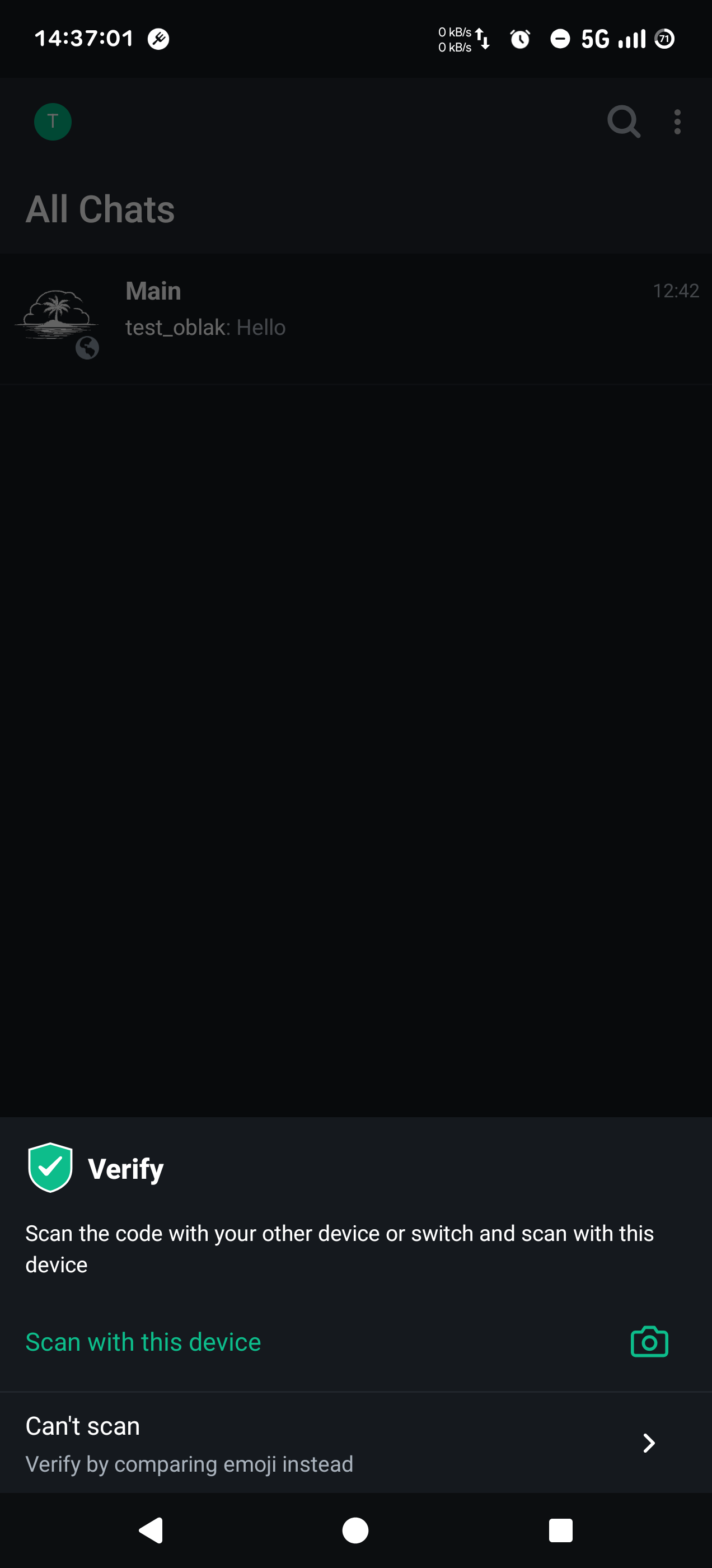
Tap Scan with this device. A QR code will be displayed on your laptop. Scan this code with your mobile device.
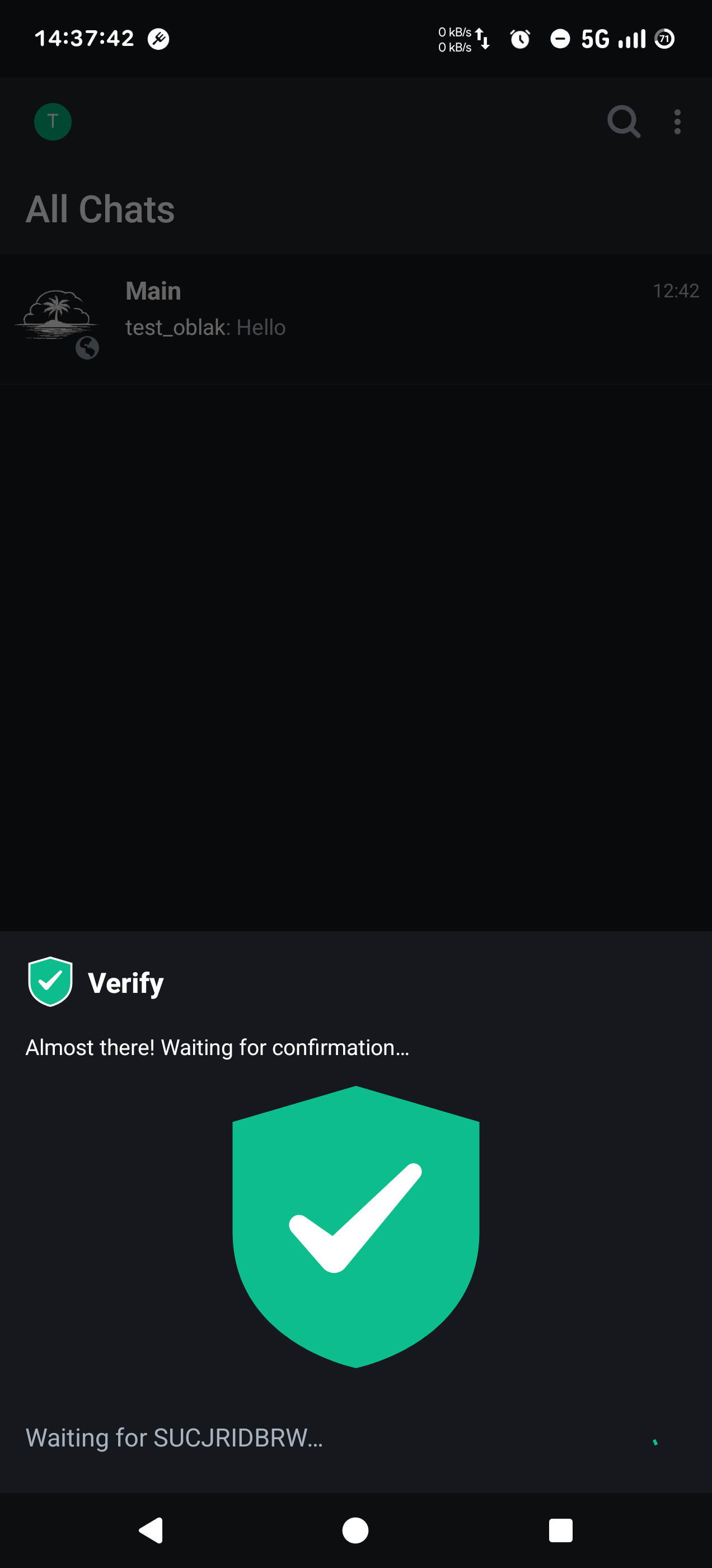
A green shield will be displayed on your mobile device if everything went well
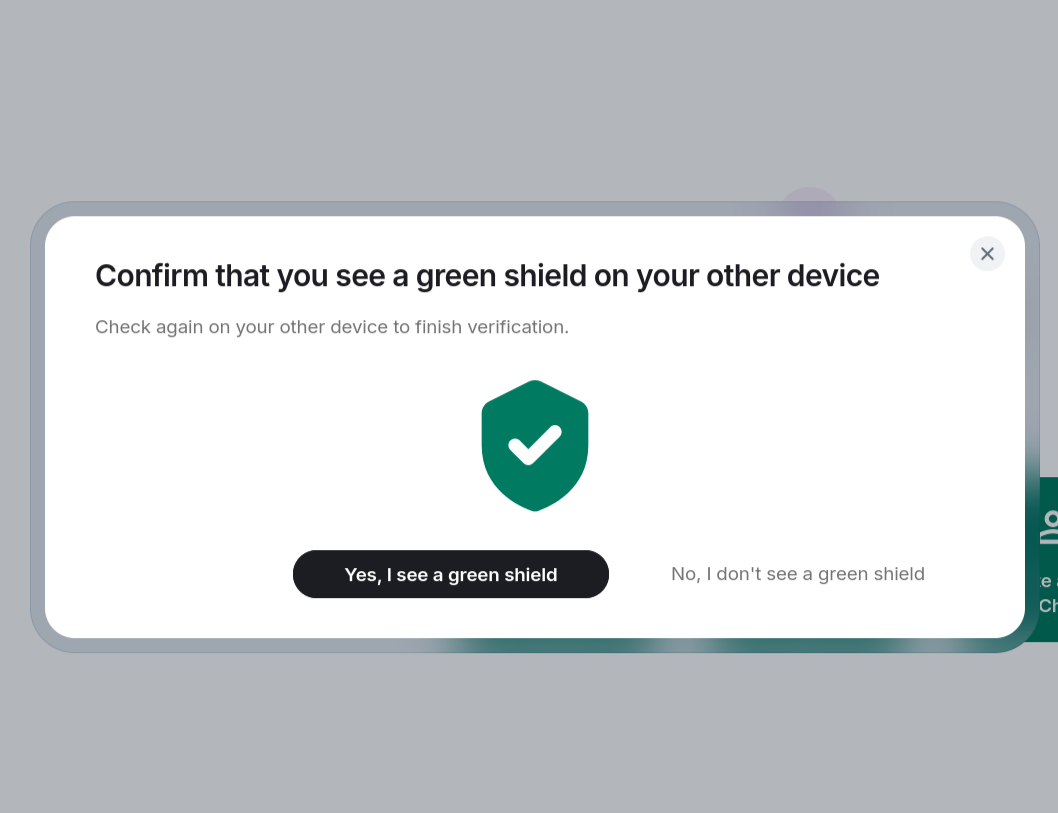
On your laptop click Yes, I see a green shield to finish the verification.
The newly verified device is now listed in the Manage Sessions section of the app settings.
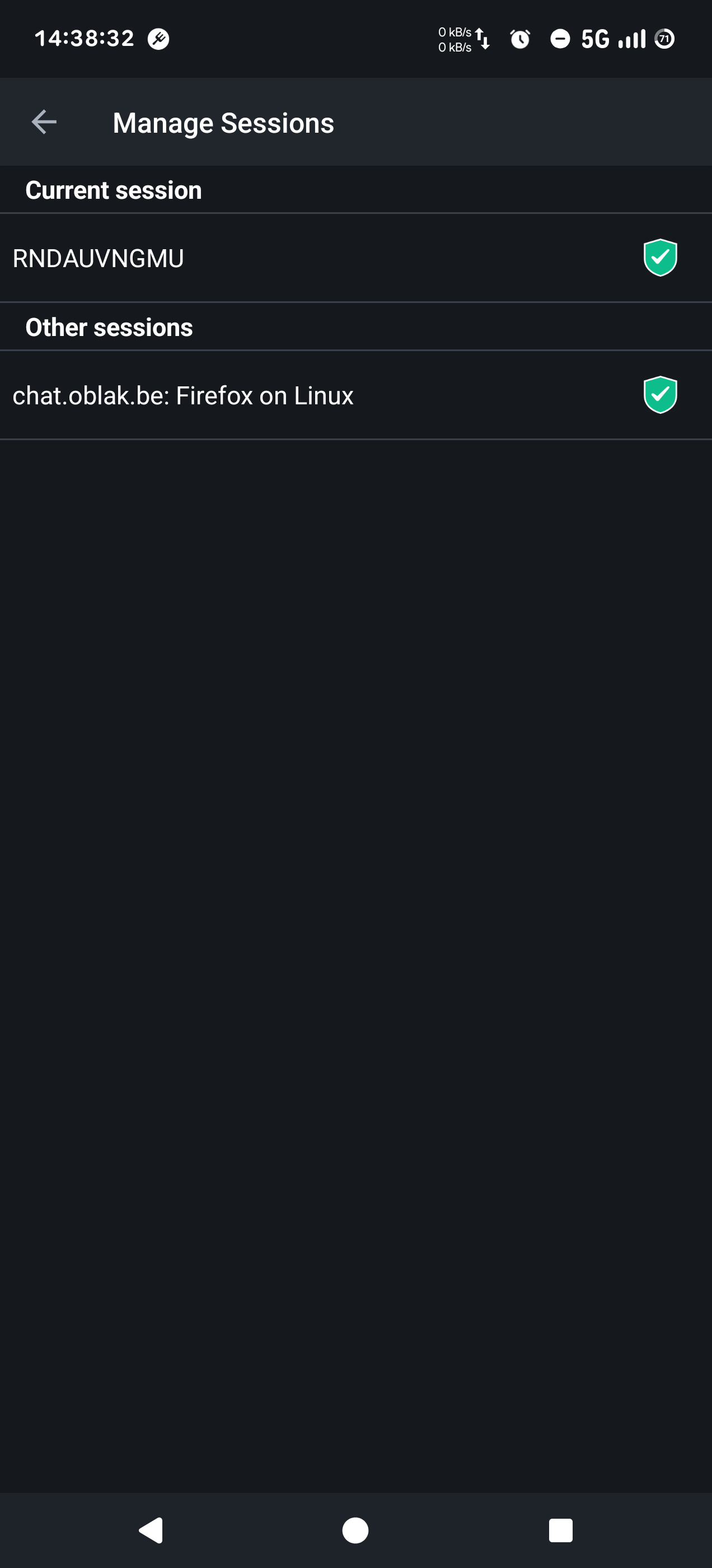
You can view the details of the device and sign out the device if you want to block access to your messages.